
This page describes how students can work on notebook-based assignments in moodle and noto, which involves the following phases:
- Phase 1: Retrieving the material of a notebook assignment
- Phase 2: Submitting your work (i.e. a notebook)
- Phase 3: Checking the submission

In these three phases, moodle and noto exchange zipped folders, which are copied from one platform to the other:
- Phase 1 will copy assignment material from moodle to noto so that you can work on it.
- Phase 2 will copy your work from noto to moodle, so that the teacher can retrieve it.
- Phase 3 will take the copy of your work that is stored on moodle and copy it to your noto workspace, so that you can check what you have submitted.
⚠️ There is not automatic synchronization between moodle and noto, file exchanges happen only when you trigger them in moodle.
Phase 1: Retrieving the material of a notebook assignment
This phase applies only if the instructor has provided a notebook (and/or other material) for the assignment.
Go to the moodle page of the course:
- Find the assignment and click on it.
- Click on the link “Get a copy of the assignment” at the bottom of the page.

- Choose where you want the folder containing the assignment to be copied into your workspace, then click on “Copy assignment”.

- You should see a confirmation message in green at the top of the page saying “A copy of the assignment has been copied to …”. Click on the button “Back to assignment”.

Go to noto:
Navigate to the folder you have chosen to copy the assignment into. You should see a folder containing the files provided by the teacher. You can start working.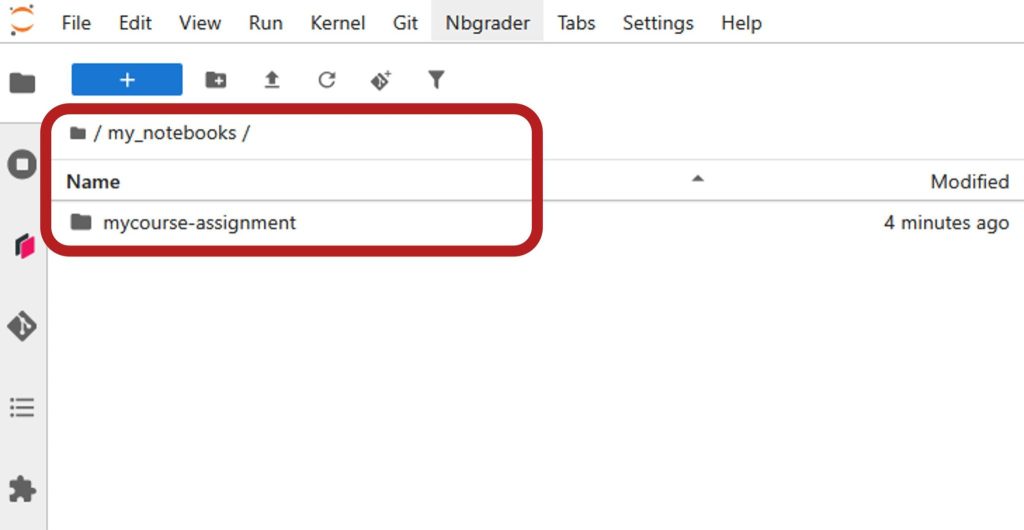
Make sure to regularly save your work either by clicking on the floppy icon (💾) at the top of the notebook, clicking on the menu File > Save Notebook or by using the keyboard shortcut Ctrl+s.
Phase 2: Submitting your work
Go to noto:
Make sure you are ready to submit your work:
- Make sure to save your work in the notebook either by clicking on the floppy icon (💾) at the top of the notebook, clicking on the menu File > Save Notebook or by using the keyboard shortcut Ctrl+S.
- Make sure your code works: restart the kernel and clear outputs, then run all cells and check that everything works as expected.
Go to the moodle page of the course:
- Find the assignment and click on it.
- Click on the button “Add submission” at the top of the page.

- You get to see the content of your noto workspace, select the folder that contains your work and that you want to submit, then click on the button “Save changes”.
👉 This will make a copy of the folder with all its content, zip it and send it to moodle.
- You should then see a screen with a green line at the top indicating “Submitted for grading”, which indicates that the submission is successful.

⚠️Once you have submitted your notebook to moodle, any change that you make on your notebook on noto is NOT synchronized with moodle! If you want the changes to be taken into account for grading, you MUST resubmit your work (provided that submission is still possible).
Phase 3: Checking your submission
It is possible (and recommended) to check what you have submitted to moodle as the version stored on moodle will be the reference for grading. Follow the steps below.
Go to the moodle page of the course:
- Find the assignment and click on it.
- Click on the link “View submission” at the bottom of the page.

- Select a folder where a copy of your submission will be transferred from moodle to noto, then click on the button “Copy submission”.
👉 The version of your submission that is currently stored on moodle will be copied back to your noto workspace, therefore at the end of this step you will have two versions of your work on noto. We strongly advise to keep your original assignment folder well separated from the copy you will use for verification otherwise you risk messing up with the content of your assignment.
- You should see a confirmation message in green at the top of the page saying “A copy of the student submission has been copied to …”. Click on the button “Back to submission”.

Go to noto:
Navigate to the folder you have chosen to store the copy of your submission, inside it you should see a folder corresponding to your submission.
👉 Inspect its content to make sure you’re happy with what you have submitted.
If you want to make modifications to your work:
- Make sure that you are modifying the right folder: since you have now two versions of your work on noto, you need to make sure which one you are modifying.
- ⚠️Remember that there is no automatic synchronization between moodle and noto, any modification you make on the noto side must be submitted again to moodle by following Phase 2 of this procedure.