
Personal workspace
On noto, you have a personal workspace in which you can store files and organize these files into folders, just like on your own computer. Your personal workspace is a permanent storage, meaning that you will find all your files and folders in your personal workspace every time you connect. Learn more about file management in the JupyterLab documentation.
Please limit the size and number of files stored in your personal workspace (check the limits here)!

You can upload files from your own computer to your personal workspace on noto simply by dragging and dropping them onto the left side panel.
You can also download files from your personal workspace back to your own computer using the menu File > Download (or right click > Download).
There are also file sharing options available on noto.
Executing code in a notebook
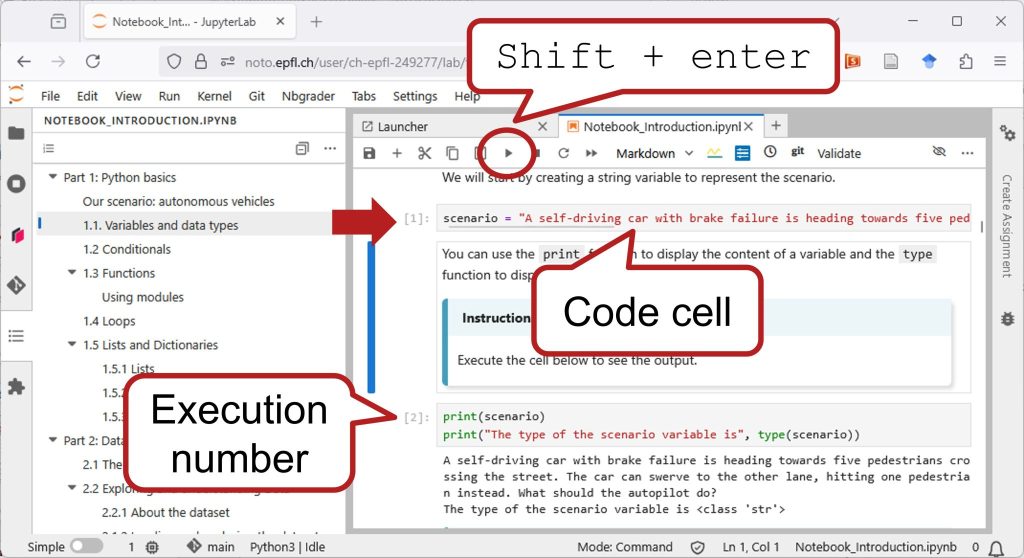
A notebook contains code cells that can be executed:
- Select a cell (or place your cursor into it)
- Either click the “Play” button (▶️) in the top toolbar, use the keyboard shortcut “Shift+Enter” or use the menu Run > Run Selected Cell.
Execution status
The sign “[ ]” at the left side of a cell indicates its execution status:
- at first it will show a star [ * ] indicating that the code is being executed
- then it will display a number, e.g. [ 1 ], indicating the order in which the cell has been executed (1 indicates it is the first cell to be executed).
Order of execution
The order in which cells are executed defines which variables, functions and libraries are available at each step. For instance, if a cell using a function is executed before the cell that defines that function, you will get an error.
👉 Pay attention to the order in which you execute the cells in your notebook. To execute all cells sequentially from top to bottom, use the menu Run > Run All Cells.

Kernels
Code in a notebook is executed by a “kernel”, which maintains and updates the execution state behind the notebook (i.e. all the variables with their values).
A kernel is automatically instantiated when you open a notebook, but it exists separately from the notebook and continues to run after you close the notebook (unless you explicitly stop it).

👉 It is strongly recommended to restart the kernel regularly to reset the execution state and avoid inconsistencies. Either use the circling arrow in the toolbar at the top or go to the menu Kernel > Restart Kernel.
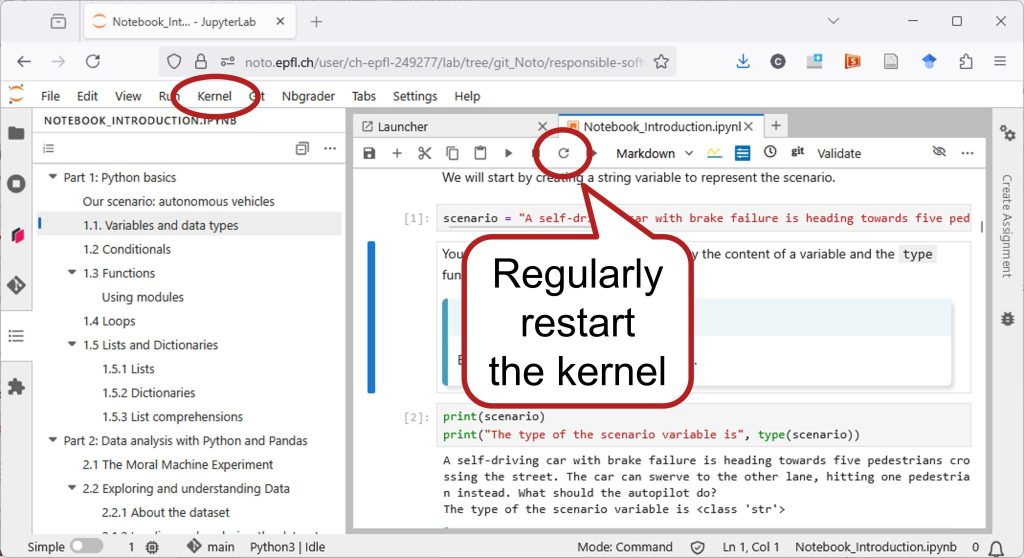
You can see the list of active kernels at all times in the left side panel.

Code autocompletion
When writing Python code in a notebook cell, you can access autocompletion suggestions by pressing the Tab key on your keyboard.
Use the Up/Down arrow keys or Tab/Shift + Tab to navigate between suggested items.
Press Enter, or click on the suggested item with your mouse/pointer to accept it.
Debugging
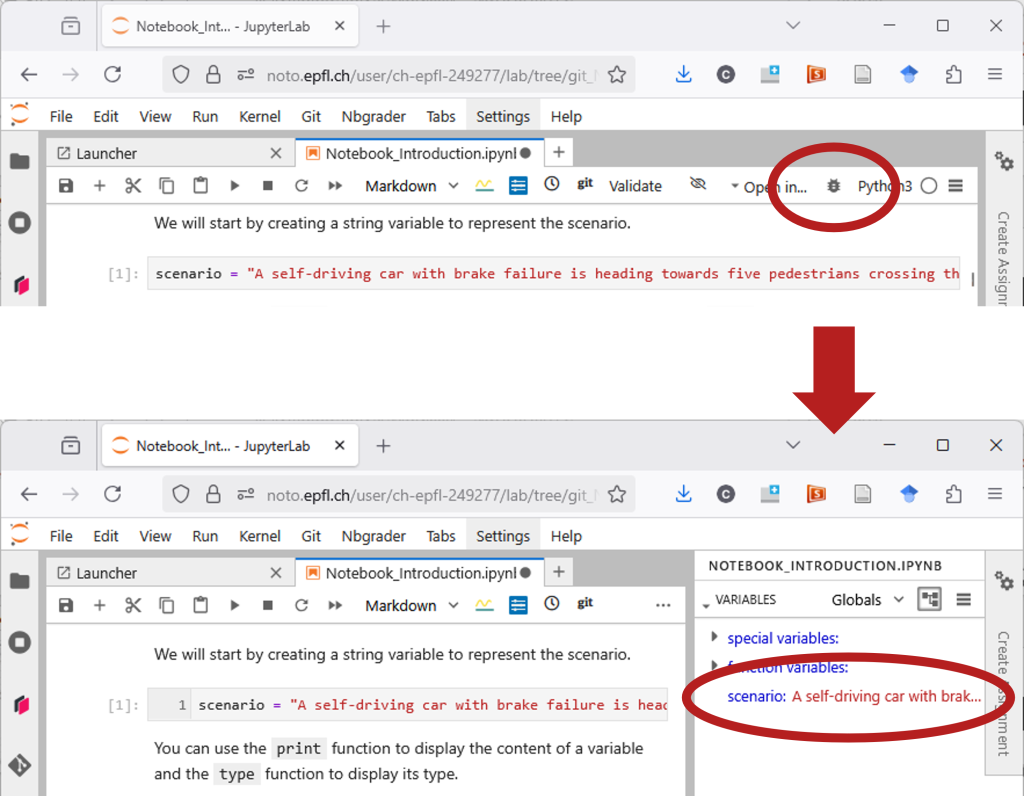
A debugger is available for Python notebooks. Click on the “bug” icon in the top toolbar to launch it. It allows you to observe the execution state as well as execute code line by line (using breakpoints). More information on the Python debugger is available in the JupyteLab documentation.
Saving your work
Noto has an automatic file saving function, but it is strongly recommended to regularly save your work. You can use the keyboard shortcut Ctrl+S, click on the floppy icon (💾) in the top toolbar or use the menu File > Save.
⚠️ A small darkgrey dot on the right side of the file name indicates that the file contains unsaved modifications!

Your files are also regularly backed-up on our archiving servers so that you never loose your files. Contact us in case of issue.
Notebook outline
When you open a notebook, you can display an interactive outline with clickable links that can help you navigate the content of the file.
This outline is automatically updated when the markdown content of the notebook is modified (e.g. adding headings).
