
Find the key information you need to review and analyze your employees’ absence balances, generate reports, and verify vacation entitlements at different points in time.
How can I view my employees’ absence balances individually?
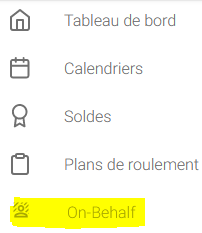
- Go to the left-hand menu, select “On Behalf”
- Select the employee
- Activate the account
- The yellow banner at the top of the page indicates which profile you are currently viewing
- Navigate through the different pages and view the employee’s balances by selecting the “Balances” menu on the left side of the screen
Generate a balance report for my unit
- Go to the Balances menu
- Select the “Reports” tab
- Run the “Balance Status of All Employees” report for the desired date

How can I check whether the employee’s vacation entitlement has been recalculated as of their termination date?
- Go to the employee’s profile (On Behalf).
- Open the “Balances” page from the menu on the left side of the screen.
- Check the validity date of the vacation entitlement:
- If the validity period covers the entire year, the entitlement has been calculated accordingly. This means that the employee’s termination action has not yet been entered in the SAP HR personal data. In this case, proceed to the next step to learn how to calculate the final vacation balance.
- If an end validity date is displayed and corresponds to the employee’s termination date, the entitlement has been prorated, and the displayed balance reflects the actual balance at the end of the contract.
How can I determine an employee’s vacation balance on a date other than the end date of their current contract? (e.g., end of a fixed-term contract for which the termination action has not yet been entered, or unit transfer)
- In the tool, go to the “Balances” menu and then “Reports.” You can calculate the vacation entitlement for the current calendar year, which will provide the prorated annual entitlement based on the employee’s workload percentage and contract duration.
- Please note that this is not a termination simulation. The calculation only shows the vacation entitlement. You must then add any carried-over balance from the previous year and manually deduct any vacation days taken before the departure date.
- A second option is to calculate the number of days to be deducted from the displayed balance based on the departure date using the EPFL Vacation Entitlement Calculation Form (Excel file): Formulaire de calcul du droit vacances EPFL (xls).