
AI can be used to make your teaching more accessible in several ways. In this section we will discuss some ways you can enhance your materials using commonly available AI tools. As always when using AI, it is important to be careful with uploading student generated material, to ensure that you are compliant with privacy concerns and copyrights. Additionally, you might also want to carefully consider which AI you use and their policies with uploaded data in general. And finally, it is important to check the AI generated material before sharing it with your students.
AI handwriting recognition tools (Microsoft OneNote, Mathpix Snip, Google Lens) can scan your handwritten notes, equations, or diagrams and turn them into clean, editable text or MathJax code. This is especially useful for creating screen-reader friendly materials, or digitizing math content for online platforms. For instance, you can snap a picture of your whiteboard notes and have them instantly transformed into accessible web content for students with visual impairments.
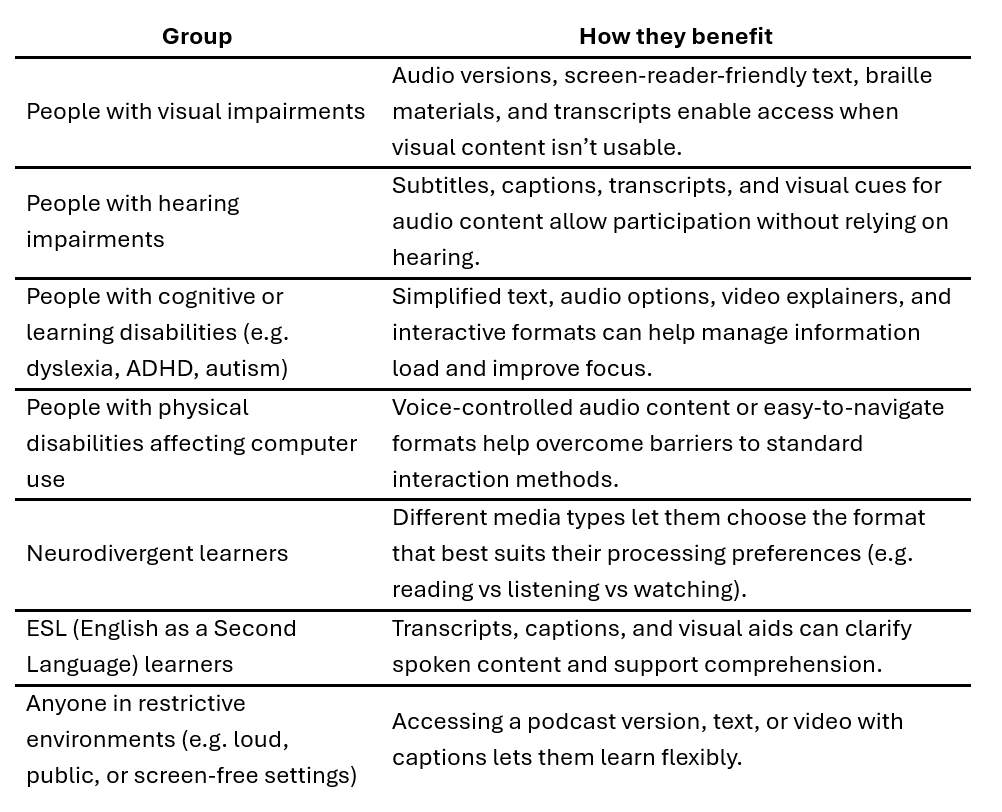
You can also use AI text-to video or text-to audio tools to transform your text into easy to digest podcasts (Google Notebook LM) or videos (Pictory, Lumen5, Descript, ElevenLabs), or use AI to create summaries (QuillBot Summarizer, SMMRY), and visual representations like mind maps or flowcharts (Lucidchart, Whimsical, Scapple) of the text.
AI translation tools (DeepL, Google Translate, Microsoft Translator) can make your content more accessible to multilingual learners, and both teachers and students can benefit from AI-powered speech-to –text tools (Otter.ai, Google Docs Voice Typing, Microsoft Dictate), allowing students to take notes verbally, which is particularly helpful for learners with dyslexia or motor challenges.
Resources: Microsoft OneNote, Mathpix Snip,Google Lens, Google Notebook LM, Pictory, Lumen5, Descript, ElevenLabs, QuillBot Summarizer, SMMRY,Lucidchart, Whimsical, Scapple, DeepL, Google Translate, Microsoft Translator, Otter.ai, Google Docs Voice Typing, Microsoft Dictate
AI tools can be used to generate tags (ChatGPT / OpenAI API, MonkeyLearn, Genei, Adobe Acrobat Pro) within your documents. These tags could be related to the content (e.g. key concepts, technical terms, formulae), or to the structural elements (e.g. headings, images, paragraphs etc). Incorporating tags enhances searchability for students and improves compatibility with screen readers and other assistive technologies.
Additionally, AI can be used to generate alt-text for images embedded in your slides and documents (Microsoft PowerPoint & Word – Accessibility Checker, Microsoft Azure Computer Vision, Seeing AI- Microsoft, GrammarlyGO), making them more accessible for students with visual impairments.

Resources: ChatGPT / OpenAI API, MonkeyLearn, Genei, Adobe Acrobat Pro, Microsoft PowerPoint & Word – Accessibility Checker, Microsoft Azure Computer Vision, Seeing AI- Microsoft, GrammarlyGO, EPFL aiaiapps
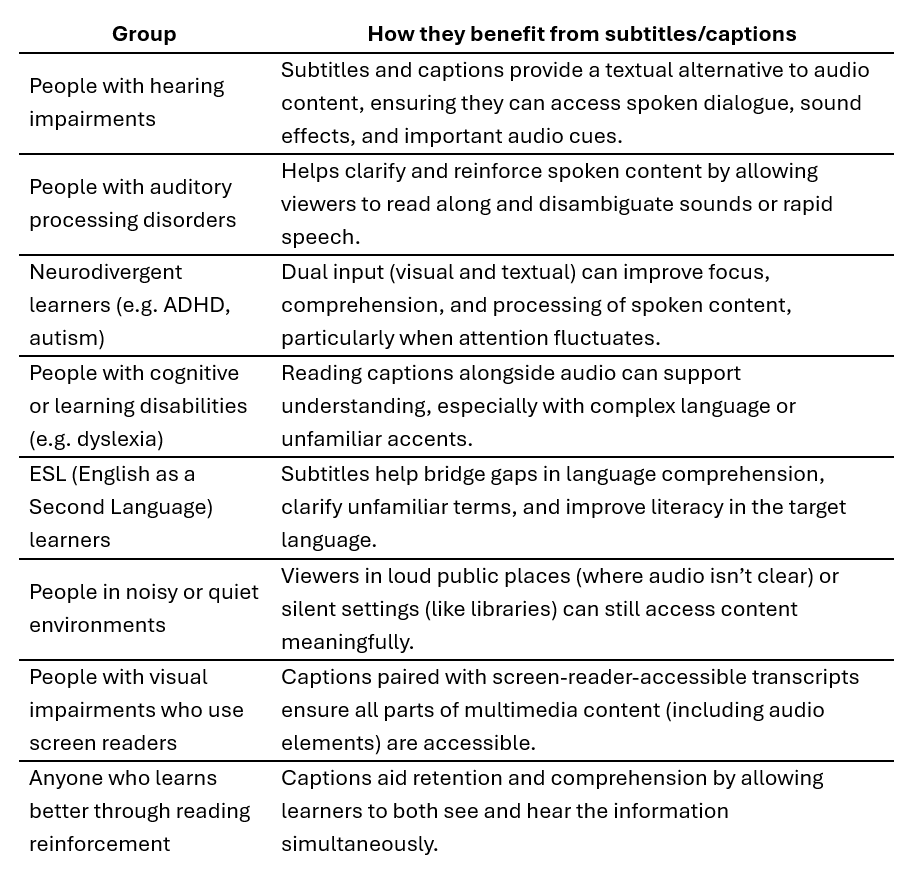
AI tools can help you to create captions (subtitles) for your videos. In Kaltura (EPFL mediaspace) this is automatically done for all new videos that are uploaded on mediaspace.
These captions will help not only the students who have auditory challenges, but also students who might need to watch them without the sound. Additionally, translation tools (DeepL, Google Translate, Microsoft Translator) will then allow you to translate the subtitles into multiple languages and this will help increase the accessibility of the video.
Resources: DeepL, Google Translate, Microsoft Translator
Checking materials to ensure accessibility is easy with embedded accessibility tools in many softwares (e.g. Microsoft Word & PowerPoint, Adobe Acrobat). These tools will allow you to check your materials and recommend places where you could improve visual accessibility (e.g. by increasing the contrast, using appropriate fonts).
Resources: Microsoft PowerPoint & Word – Accessibility Checker
AI-powered semantic search tools (e.g. Graphsearch.epfl, EPFL exoset for exercises and quizzes) offer an advantage over traditional keyword-based search by understanding the intent and meaning behind a user’s query, rather than just matching exact words. For example, someone searching “how do plants make food?” would still find content titled “Photosynthesis Process Explained,” thanks to semantic recognition of related concepts. This leads to faster, more accurate results and a smoother user experience—especially in educational environments where the same topic can be described in many ways. By integrating semantic search, content becomes far more accessible, personalized, and discoverable.
Resources: graphsearch, Exoset