
Download the IP Phone User Guide
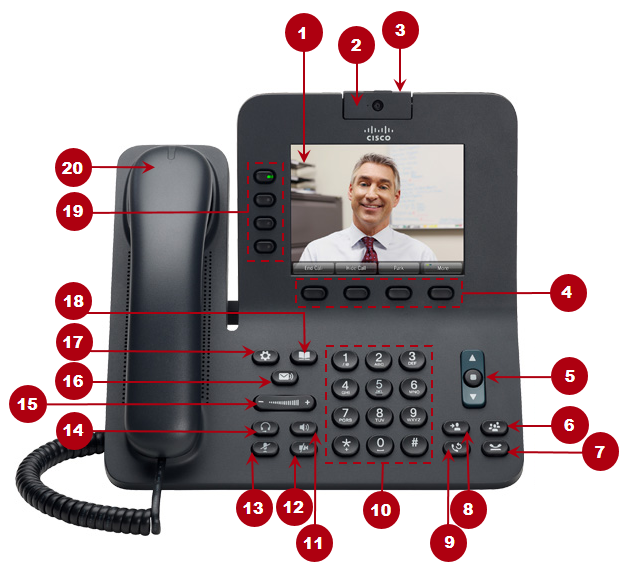
 |
Phone screen |
Shows information about your phone. |
 |
Camera | Allows you to make a point-to-point video call with another Cisco IP phone or with Jabber softphone. |
 |
Lens Cover button |
Hide the camera lens. |
 |
Softkeys buttons |
Allow you to access the softkey options (for the selected call or menu item) dispalyed on your phone screen. |
 |
Navigation Pad and Select button |
The two-way Navigation Pad allows you to scroll through menus, highlight items, and move within a text input field.
The Select button (center oft the Navigation Pad) allows you to select a highlighted item as well as wake up the phone from deep sleep mode. The Select button is lit (white) when the phone is in power-save mode. |
 |
Conference button
|
Creates a Conference call. |
 |
Hold button
|
Places a connected call on Hold. |
 |
Transfer button
|
Transfers a call. |
 |
Redial button
|
Redials a call. |
 |
Keypad |
Allows you to dial phone numbers, enter letters, and choose menu items (by entering the item number). |
 |
Speakerphone button
|
Selects the Speakerphone as the default audio path and initiates a new call, picks up an incoming call, or ends a call. During a call, the button is lit green. The Speakerphone audio path does not change until a new default audio path is selected (for example, by picking up the handset). If a headset is connected, the Speakerphone button selects them as the default audio path. |
 |
Video Mute button |
Mutes the video from the phone screen during a video call. When Video Mute is on, the Video Mute button is lit red. |
 |
Mute button |
Mutes the video from the phone screen during a video call. When Video Mute is on, the Video Mute button is lit red. |
 |
Headset button
|
Selects the Headset as the default audio path and initiates a new call, picks up an incoming call, or ends a call. During a call, the button is lit green.
A Headset icon in the phone screen header line indicates the headset is the default audio path. This audio path does not change until a new default audio path is selected (for example, by picking up the handset). |
 |
Volume button
|
Controls the handset, headset, and speakerphone volume (off hook) and the ringer Volume (on hook). Silences the ringer on the phone if an incoming call is ringing. |
 |
Messages button
|
Auto-dials your Voicemail system. |
 |
Configuration button
|
Opens the Configuration menu.
Use it to access applications such as call history, preferences, administrator settings, and phone information. |
 |
Contacts button
|
Opens the Contacts menu. Use it to access corporate directory. |
 |
Line buttons | Each corresponds with a phone line, speed dial, and calling feature. Pressing a button for a phone line displays the active calls for that line. Color LEDs indicate the line state:
|
 |
Handset rest |
To rest the phone handset. When there is an incoming call, the LED in the handset rest flashes red. If there is a new voice message, the LED is lit red. |


 – Ringing call on this line
 – Active or held call on this line
 – Shared line in-use remotely