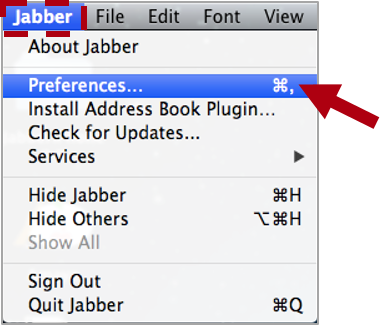
The installation options for Cisco Jabber Softphone Mac are available at Toolbar Mac > Jabber > Preferences…
Microphone and loud-speakers.
Select the output device to be used by clicking on the Audio/Video tab.
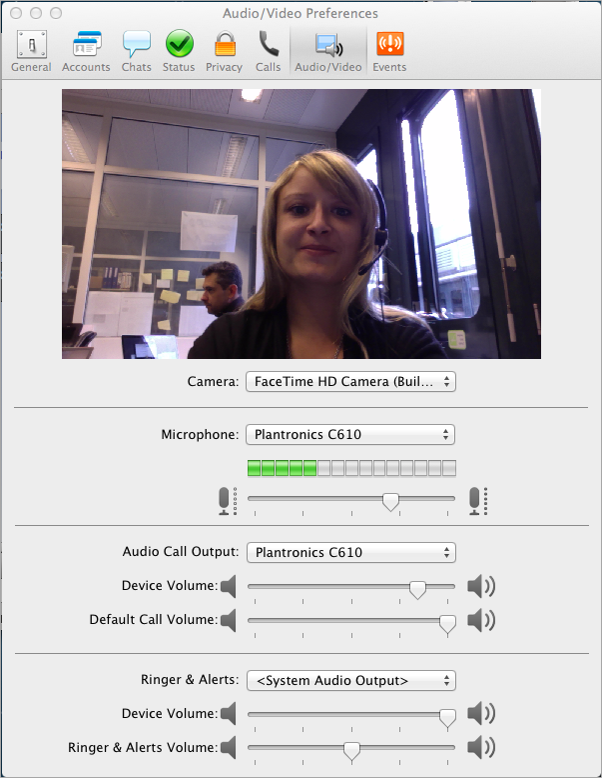
Test the correct functioning of the loud-speakers, the microphone and sounds (ringtones etc.) and adjust the volume.
If multiple devices are available on the machine, indicate the order of their use by clicking on the scrolling list.
Sound system.
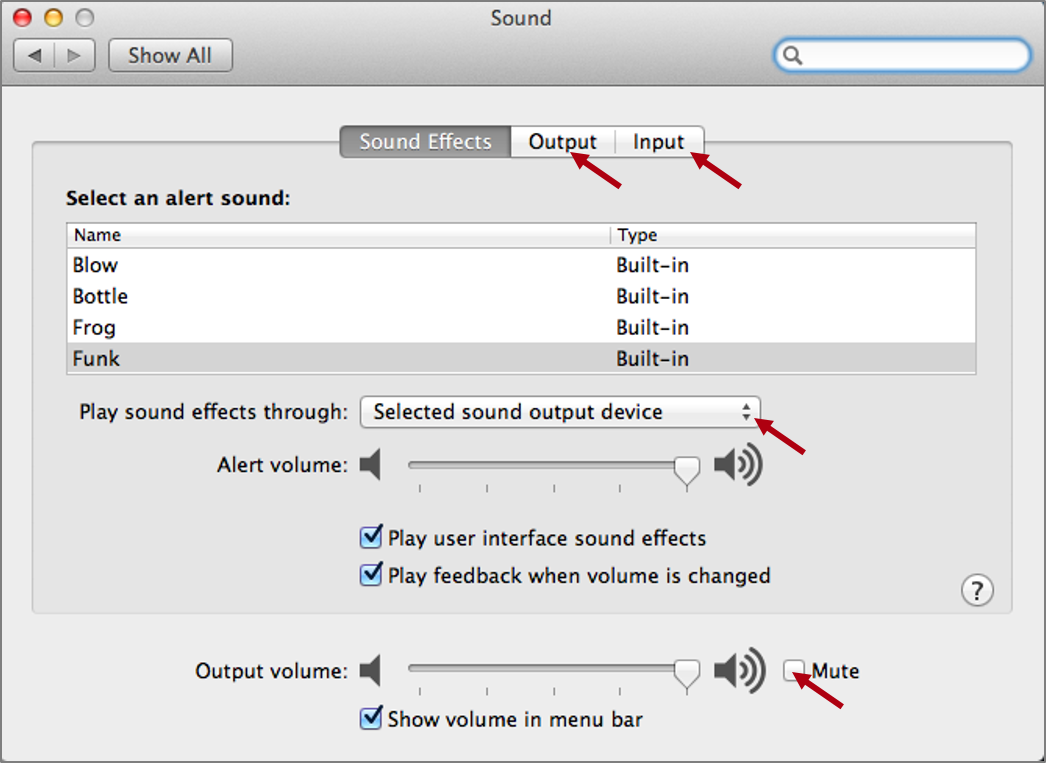
In the system preferences, select Sound.
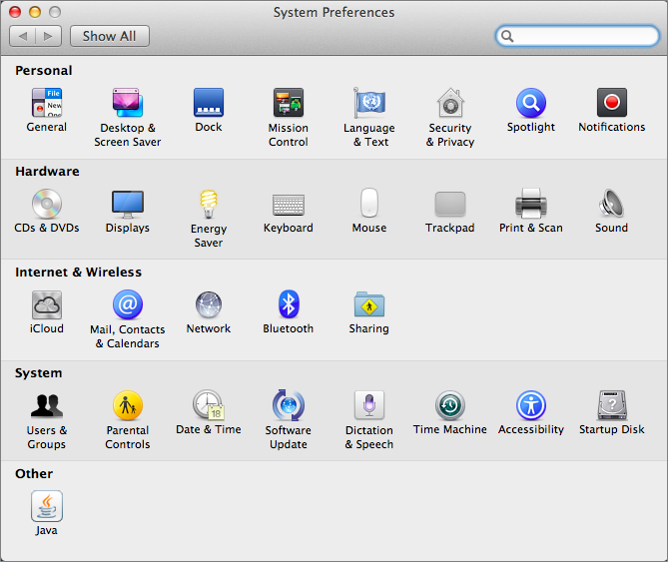
Select the devices to be used for incoming (input) and outgoing (output) sounds.
Example: select the headphones as the device to use for an incoming call. As a result, the sound alarm for an incoming call will ring in the headphones and not on the Mac.
Availability status.
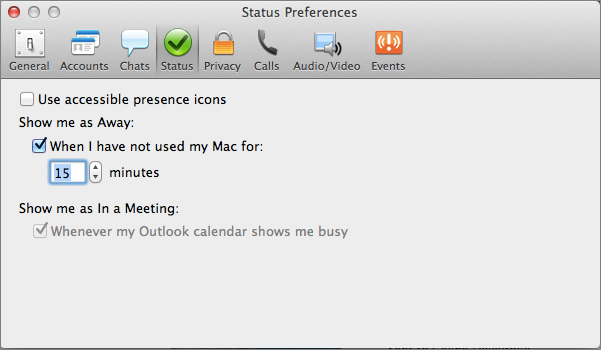
Manage your availability status according to your activity on your computer and/or according to your calendar.
For example:
- If you tick “Show me as away“, when you haven’t used your Mac for 15 minutes your status automatically becomes Away.
- If you tick “Show me as in a Meeting“, when an event is recorded in your Outlook calendar your availability status automatically becomes “In a Meeting“.
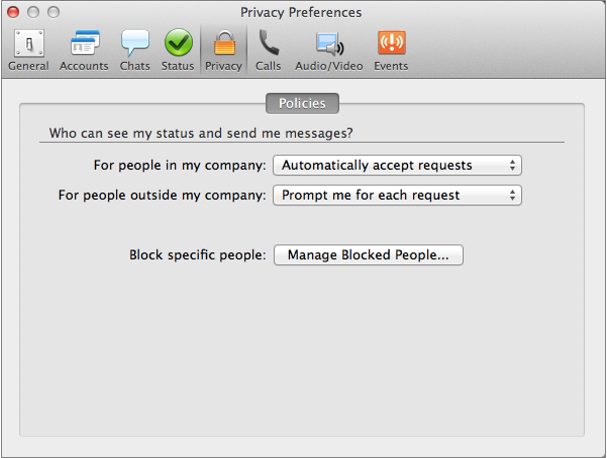
Privacy.
You can choose who can see your availability status, and who can send you messages either internally to your domain (epfl.ch) or externally. If you choose to tick “Manage Blocked People“, the people in your contact list or those you have authorized will not be blocked.
For example, you can choose to accept automatically all the invitations from EPFL internal people, but in contrast to receive a message to accept (or not) external people