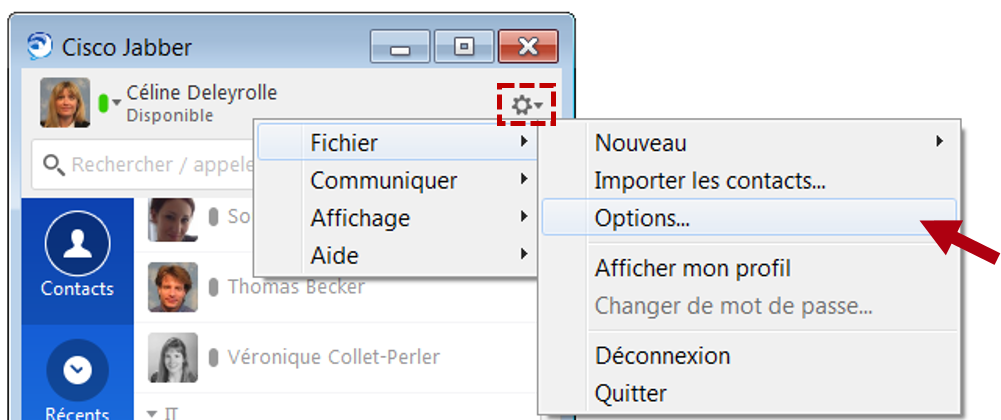
The Jabber Installation Options are accessible via  > File > Options…
Select the output device to be used by clicking on Audio in the Options panel.
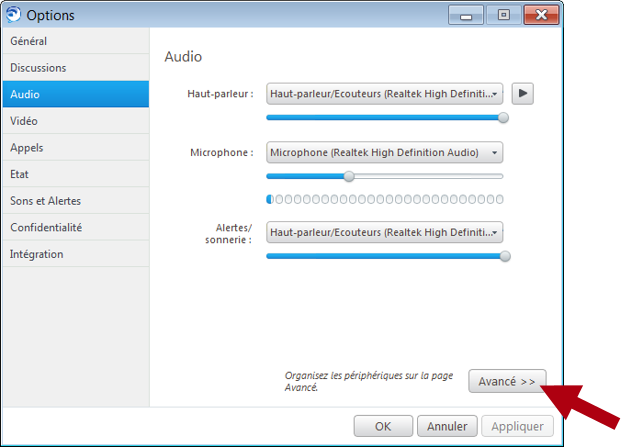
In this panel, you can test the functioning of the loud-speakers and adjust their volume.
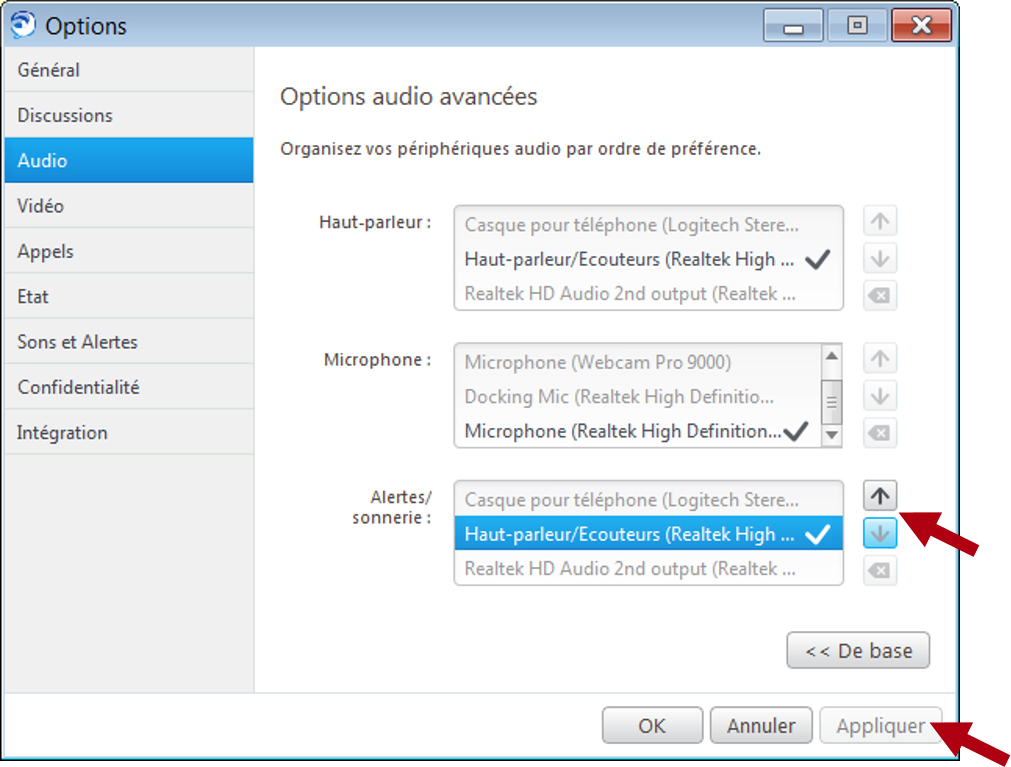
If multiple loud-speakers or microphones are available on your PC or Mac, you can change the order of use of these devices by clicking on the Advanced button.
Sound system.
In Windows 7, by default, all applications have the same sound level. However, you can modify the volume in the Sound Mixer menu. To do this, right-click on the Sound icon  next to the system clock. You can then adjust the volume of the loudspeakers, Cisco Jabber, etc…
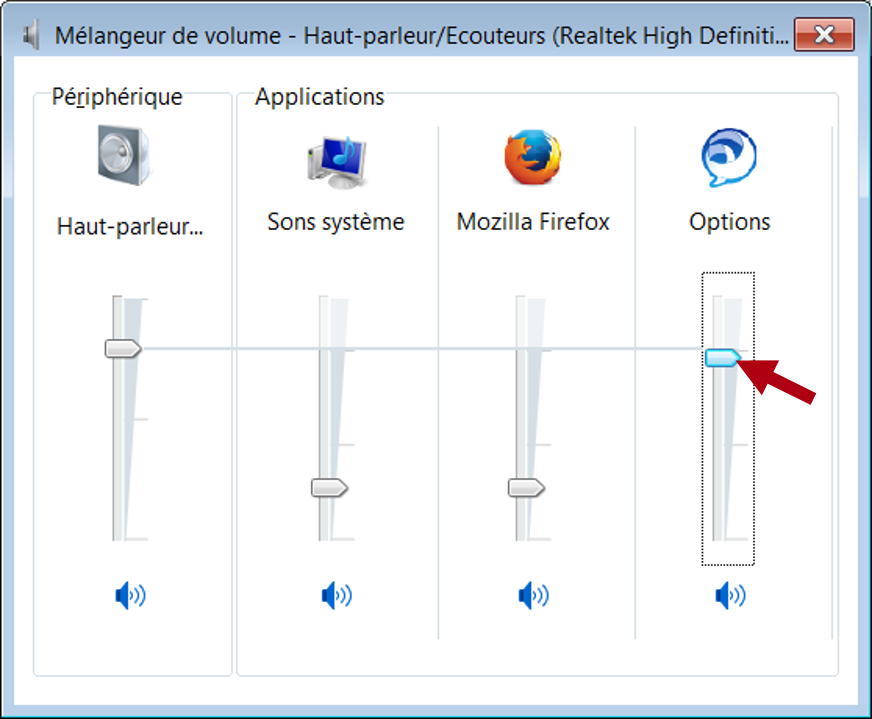
By default, Windows 7 reduces the volume of other system sounds by 80% when it detects communications.
Video.
You can test here the webcam you use for your communications with Jabber softphone.
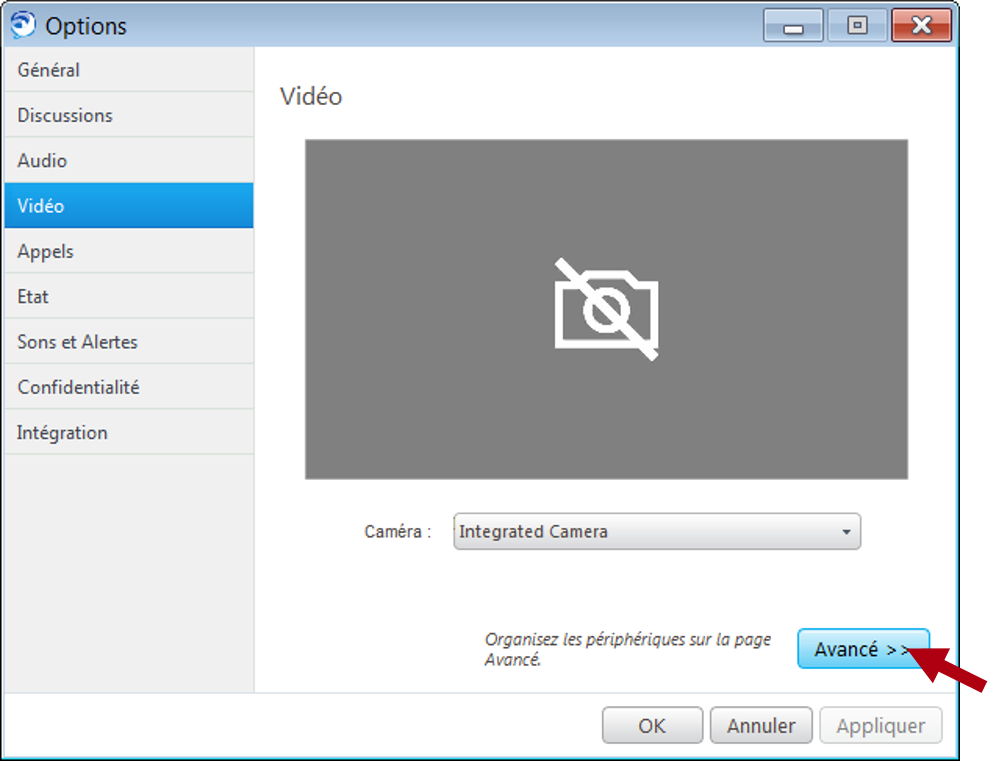
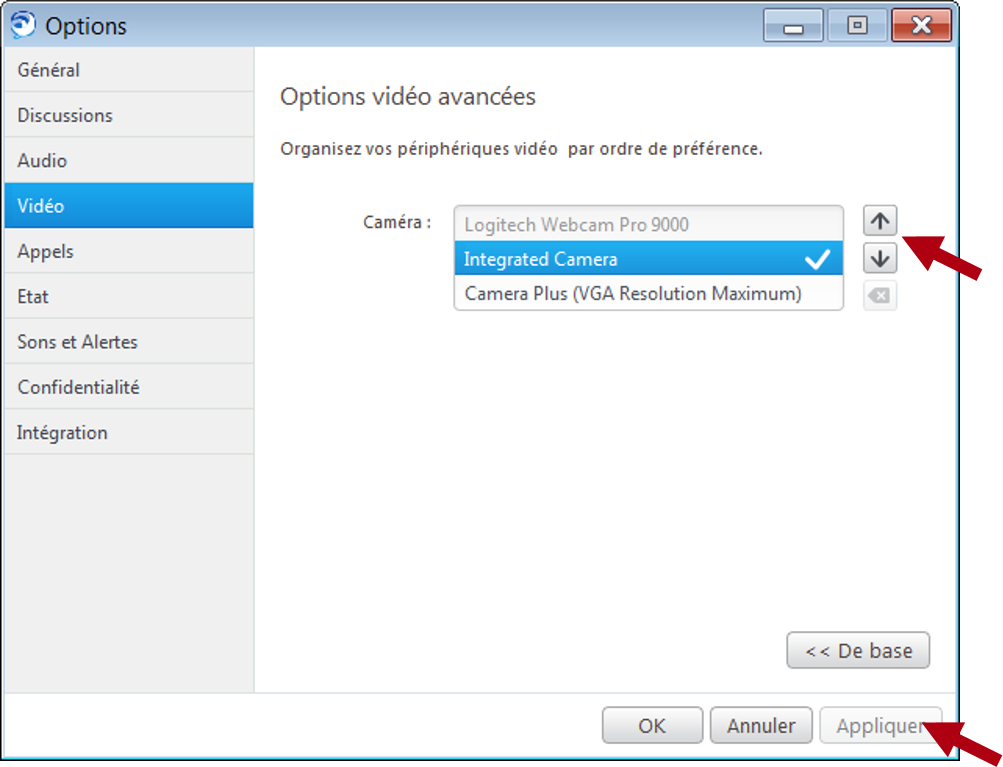
By clicking on Advanced, you can organize your video devices by order of preference.
Availability status.
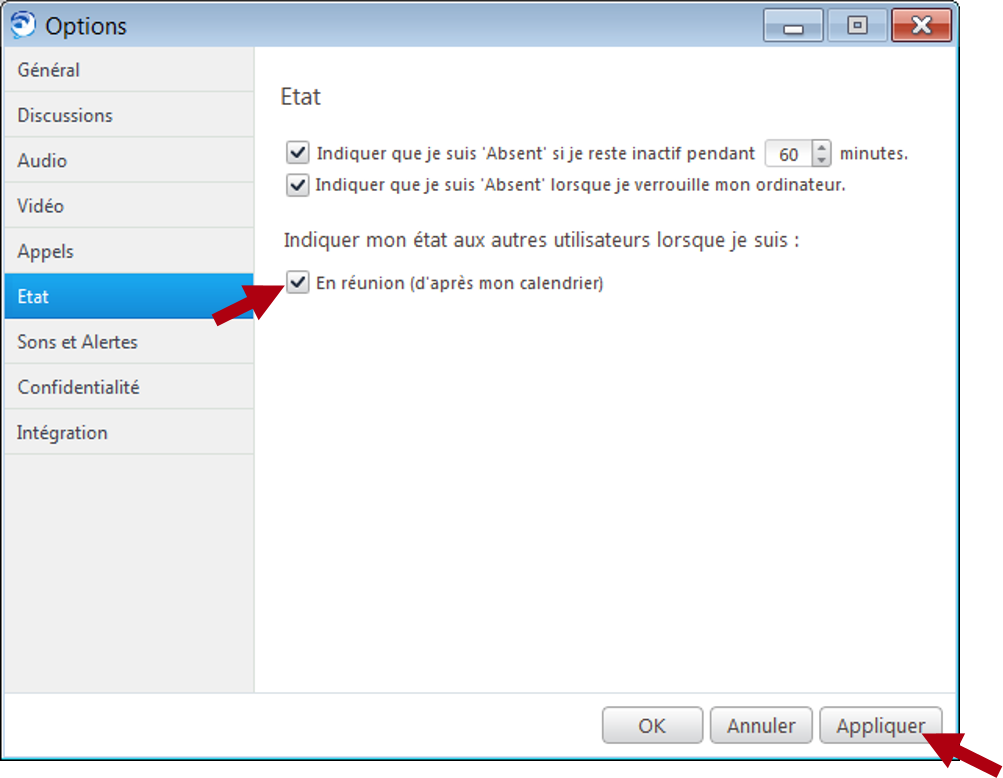
Manage your status according to your activity on your PC or Mac, and/or your calendar.
For example: If you tick “In a meeting (according to your calendar)” when you record an event in your Outlook calendar, when the event starts your status automatically changes to “In a meeting“.
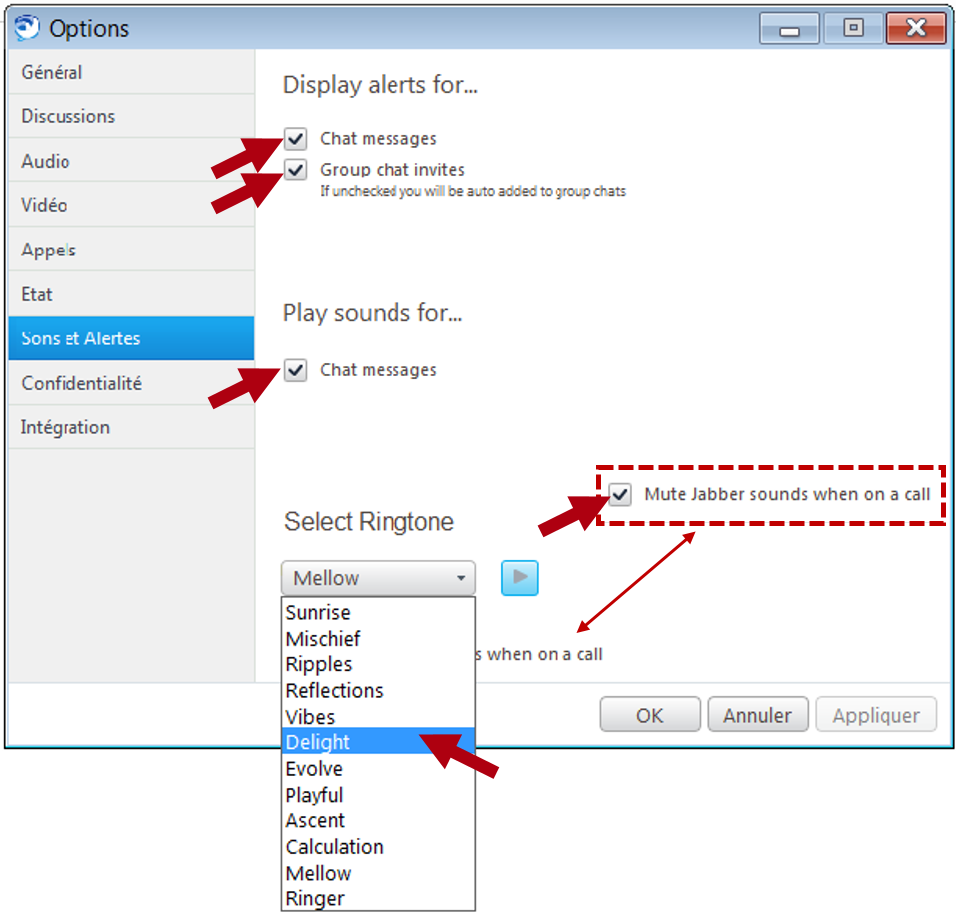
Here, you can personalize your Sounds and Alerts. Choose your favorite ringtone, or a warning sound for when you receive a chat message, or instruct Jabber to switch off the ringtone when you are already on a call, etc…
Privacy.
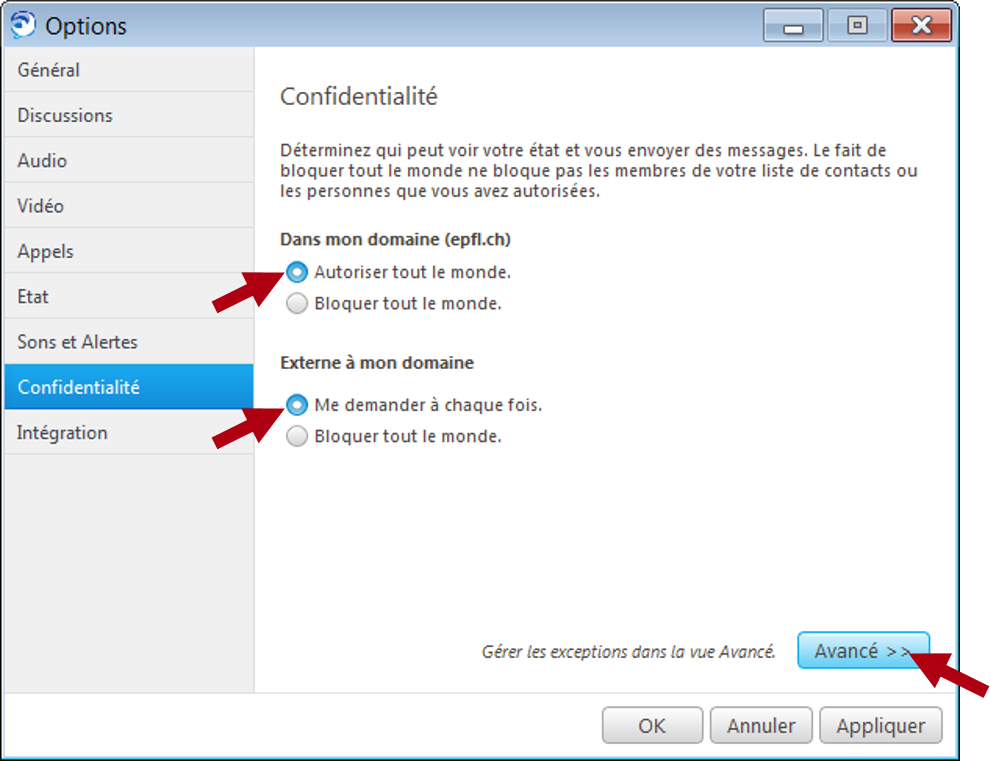
You can choose who can view your availability status, and send you messages either internally to your domain (epfl.ch) or externally. If you choose to tick the option “Block Everyone“, the people in your contact list or those you have authorized will not be blocked.
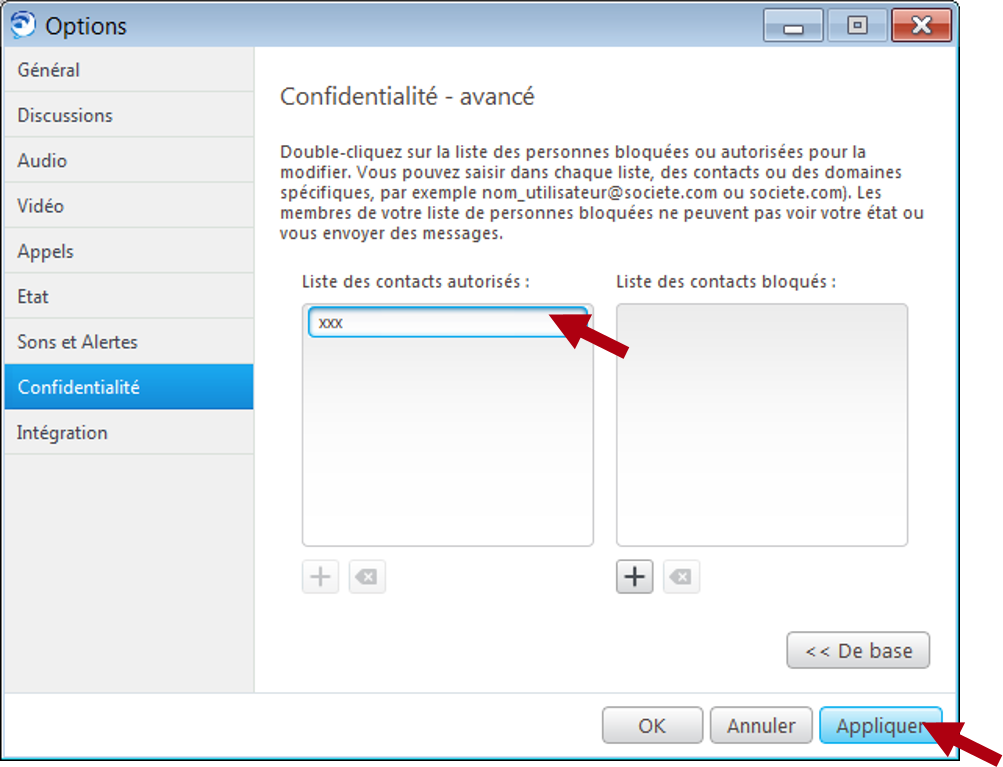
By clicking on Advanced, you can specify those contacts that you want to block.
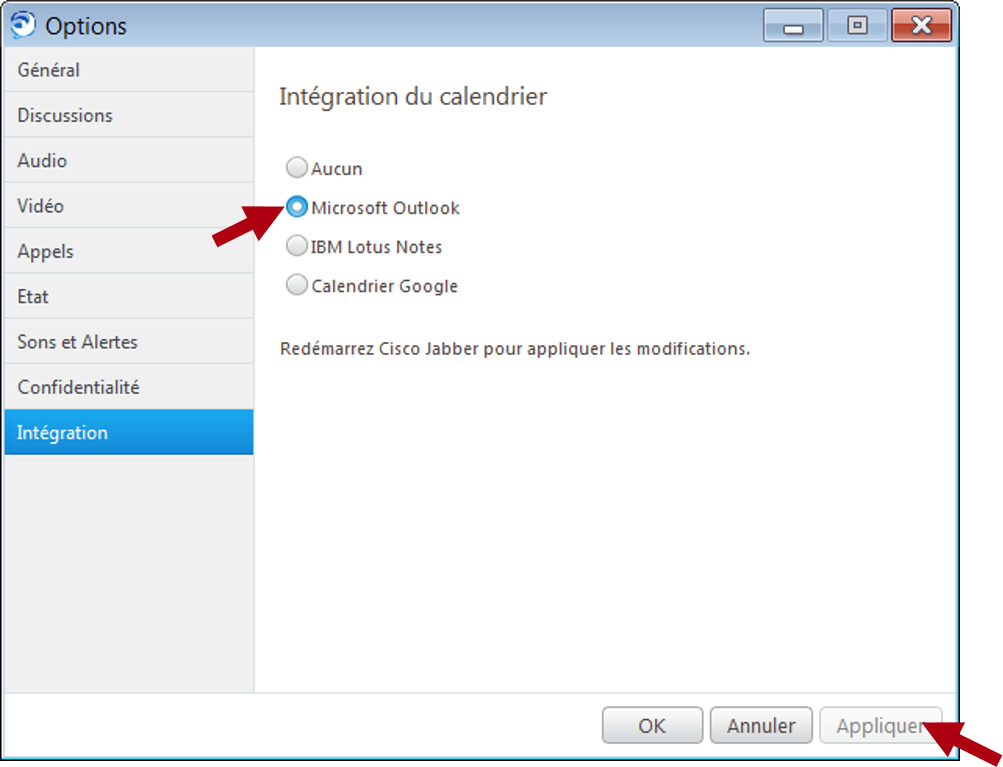
Integration.
You can choose to integrate your Outlook Calendar in your Jabber Softphone and benefit from a richer experience (dynamic availability status, receipt by e-mail of voice messages in Outlook, etc…).